
- adv.rojen@gmail.com
- Anamnagar Kathmandu

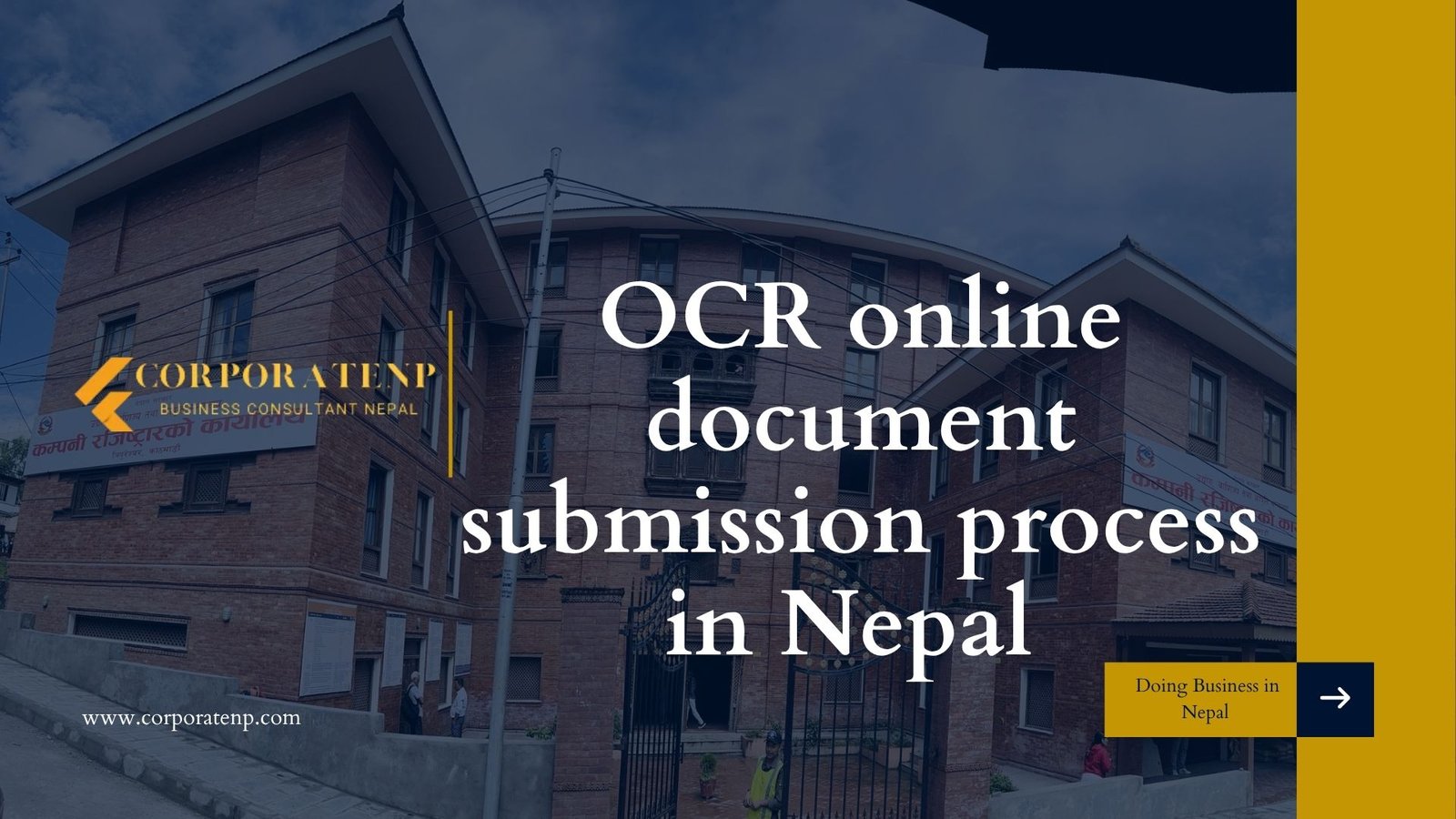
OCR online document submission process in Nepal
25
Mar
Table of Contents
Meta Description: Complete OCR online document submission tutorial for Nepal. Learn CAMIS portal navigation, document upload process, fee payment, and tracking. Step-by-step guide for company registration.
Slug: ocr-online-document-submission-tutorial-nepal
Focus Keywords: OCR online document submission Nepal, CAMIS portal tutorial Nepal, company registration document upload Nepal, OCR Nepal online filing
LSI Keywords: CAMIS OCR Nepal, document upload process Nepal, online company registration Nepal, OCR eServices Nepal, company registrar online portal Nepal, digital document submission Nepal, CAMIS payment process Nepal, OCR tracking number Nepal, company incorporation online Nepal, electronic document filing Nepal
What is the OCR online document submission process in Nepal and how does it work? The OCR online document submission process in Nepal is the digital procedure through the CAMIS (Company and Intellectual Property Office Management System) portal that enables entrepreneurs to submit company registration documents electronically. The process works through account creation, name reservation, document scanning and upload in PDF format, online fee payment via integrated gateways, and real-time application tracking until certificate issuance.
Understanding OCR Online Document Submission in Nepal
The OCR online document submission system in Nepal represents a transformative digital initiative by the Office of Company Registrar (OCR) to modernize business registration. The CAMIS portal (camis.ocr.gov.np) has replaced traditional paper-based submissions, enabling entrepreneurs to complete company incorporation from anywhere with internet connectivity .
The online document submission process in Nepal operates through a secure, user-friendly interface that guides applicants through sequential steps. Consequently, physical visits to OCR offices are minimized, though certain verification stages may still require in-person attendance. Moreover, the system integrates payment gateways, document verification, and certificate issuance into a unified digital workflow .
Legal Framework for OCR Online Submission
The OCR online document submission system operates under comprehensive legislation:
| Law/Regulation | Digital Provision | Key Feature |
|---|---|---|
| Companies Act, 2063 (2006) | Section 4, 5 | Electronic filing authorization |
| Electronic Transactions Act, 2063 (2004) | Digital signatures | Legal validity of online submissions |
| Company Registration Rules, 2064 (2007) | Online procedures | CAMIS portal operational guidelines |
| OCR Digital Policy, 2080 | Portal management | System administration and security |
CAMIS Portal: Technical Requirements
Before initiating OCR online document submission in Nepal, ensure technical readiness:
| Requirement | Specification | Purpose |
|---|---|---|
| Internet Connection | Stable broadband (minimum 2 Mbps) | Uninterrupted upload and payment processing |
| Web Browser | Chrome, Firefox, Edge (latest versions) | Portal compatibility |
| Document Scanner | 300+ DPI resolution | Clear document imaging |
| File Formats | PDF, JPEG (PDF preferred) | OCR system acceptance |
| File Size Limit | Maximum 5-10 MB per document | System performance optimization |
| Digital Payment | eSewa, Khalti, mobile banking, credit card | Fee settlement |
| Valid Email | Active email address | Notifications and tracking |
| Mobile Number | Nepali SIM for OTP | Two-factor authentication |
Step-by-Step OCR Online Document Submission Tutorial
Phase 1: Portal Account Creation
Step 1: Access CAMIS Portal
- Visit https://camis.ocr.gov.np
- Click "New Registration" or "Create Account"
- Select language preference (Nepali or English)
Step 2: User Registration
- Enter full name as per citizenship/passport
- Provide valid email address
- Enter active mobile number for OTP verification
- Create secure username and password
- Upload profile photo and identification document
- Verify account through email confirmation and SMS OTP
Step 3: Profile Completion
- Update personal details
- Add professional information if applicable
- Set security questions for account recovery
- Timeline: 5-10 minutes for complete registration
Phase 2: Company Name Reservation
Step 4: Name Availability Check
- Login to CAMIS portal with credentials
- Navigate to "Name Reservation" module
- Enter proposed company name in English
- Enter proposed name in Nepali (or transliterate)
- System checks availability in real-time
Step 5: Business Activity Selection
- Select primary business objectives from dropdown menu
- Reference NSIC (Nepal Standard Industrial Classification) codes if uncertain
- System validates objective compatibility with company type
Step 6: Name Reservation Submission
- Complete reservation application form
- Upload supporting documents (if required for foreign investors)
- Pay name reservation fee: NPR 100-500
- Processing time: 1-2 working days
- Receive name reservation certificate via email (valid for 35-90 days)
Phase 3: Document Preparation and Upload
Step 7: Constitutional Documents Preparation
| Document | Format Requirements | Preparation Tips |
|---|---|---|
| Memorandum of Association (MOA) | PDF, clear Nepali text | Print on durable paper, one-sided, signed by all shareholders at bottom of each page |
| Articles of Association (AOA) | PDF, clear Nepali text | Include internal governance rules, signed by all shareholders |
| Application Form | OCR prescribed format | Complete all fields accurately, use same spelling as citizenship |
| Shareholder Citizenship | PDF, front and back | High-resolution scan, all details legible |
| Shareholder Photos | JPEG, passport size | White background, recent photograph |
| Witness Details | PDF with signatures | Names, addresses, signatures, and fingerprints |
| Office Address Proof | PDF (rent agreement/utility) | Valid lease agreement or ownership document |
Step 8: Document Scanning Guidelines
- Use 300 DPI minimum resolution
- Ensure all corners and edges are visible
- Remove shadows and creases
- Verify text legibility before upload
- Convert to PDF format for text documents
- Keep file sizes under 5 MB per document
Step 9: Online Document Upload Process
- Login to CAMIS portal
- Select "Company Registration" from dashboard
- Choose "New Company Registration"
- Enter reserved company name
- Fill company information form:
- Authorized capital amount
- Paid-up capital details
- Shareholder information (names, citizenship numbers, share percentages)
- Director details and consent
- Registered office address
Step 10: Sequential Document Upload
- Upload MOA in designated field
- Upload AOA in corresponding section
- Upload shareholder citizenship copies
- Upload shareholder photographs
- Upload witness documentation
- Upload office address proof
- Upload any additional required documents (power of attorney, board resolution for foreign companies)
Step 11: Document Verification Before Submission
- Review all uploaded documents for clarity
- Verify form field accuracy
- Check spelling consistency with official documents
- Confirm all mandatory fields are completed
- Preview complete application
Phase 4: Fee Payment and Submission
Step 12: Fee Calculation
- System automatically calculates registration fee based on authorized capital :
- Up to NPR 100,000: NPR 1,000
- NPR 100,001 - 2,500,000: NPR 9,500
- NPR 2,500,001 - 10,000,000: NPR 16,000
- Above NPR 10,000,000: NPR 16,000 + NPR 3,000 per additional NPR 10 million
Step 13: Revenue Payment Process
| Payment Step | Action | Details |
|---|---|---|
| Voucher Generation | System generates payment voucher | Unique reference number assigned |
| Terms Acceptance | Accept terms and conditions | Digital consent for transaction |
| Method Selection | Choose payment method | Online (eSewa, Khalti, mobile banking) or offline (bank deposit) |
| Online Payment | Complete transaction through gateway | Instant confirmation, receipt generated |
| Offline Payment | Print voucher and deposit at designated bank | Nabil Bank, Rastriya Banijya Bank branches |
| Verification | Upload payment receipt (if offline) | System updates payment status |
Step 14: Final Submission
- Confirm all information accuracy
- Accept declaration and undertaking
- Click "Final Submission" button
- System generates unique application tracking number
- Receive email confirmation with submission details
- Status: Application queued for OCR review
Phase 5: OCR Review and Approval
Step 15: Application Tracking
- Login to CAMIS portal regularly
- Navigate to "Track Application" section
- Enter tracking number or view dashboard
- Monitor status updates:
- Submitted: Application received
- Under Review: OCR officer examining documents
- Query Raised: Additional information required
- Approved: Verification complete
- Rejected: Application declined with reason
Step 16: Query Response (if applicable)
- Receive email notification of query
- Login to portal and view query details
- Prepare required additional documents
- Upload response through portal interface
- Response timeline: Typically 7-14 days allowed
Step 17: Physical Verification (if required)
- Receive appointment notification for document verification
- Schedule visit to OCR office or designated location
- Carry original documents:
- MOA and AOA originals with signatures
- Original citizenship certificates
- Payment receipts
- Name reservation certificate
- OCR officer verifies authenticity against uploaded copies
- Biometric verification may be conducted
Step 18: Certificate Issuance
- Receive approval notification via email and SMS
- Login to CAMIS portal
- Download Certificate of Incorporation with:
- Unique company registration number
- Digital signature of Registrar
- QR code for verification
- Date of incorporation
- Print certificate for official use
- Physical certificate collection optional from OCR office
Document Upload Troubleshooting Guide
Common Issues and Solutions
| Issue | Cause | Solution |
|---|---|---|
| Upload Failure | File size exceeds limit | Compress PDF or reduce image resolution |
| Format Error | Incorrect file type | Convert to PDF using online tools or scanner software |
| Blurry Documents | Low scan resolution | Rescan at 300+ DPI, ensure proper lighting |
| System Timeout | Session expiration | Save progress frequently, re-login and continue |
| Payment Failure | Gateway error | Try alternative payment method, check bank balance |
| Login Error | Incorrect credentials | Use "Forgot Password" feature, clear browser cache |
| Portal Freeze | Server overload | Retry during off-peak hours (early morning) |
CAMIS Portal Navigation Tips
Dashboard Functions
| Menu Section | Function | Usage |
|---|---|---|
| Name Reservation | Check and reserve company names | Pre-registration step |
| New Registration | Submit new company applications | Primary incorporation process |
| Post Registration | File annual returns, amendments | Ongoing compliance |
| Track Application | Monitor submission status | Real-time progress checking |
| Payment Section | View and pay fees | Revenue settlement |
| Download Certificate | Access incorporation documents | Post-approval document retrieval |
| Query Response | Reply to OCR questions | Compliance communication |
Security Best Practices
- Never share login credentials with unauthorized persons
- Use strong passwords with alphanumeric combinations
- Enable two-factor authentication where available
- Log out after each session
- Verify portal URL: https://camis.ocr.gov.np (avoid phishing sites)
Post-Submission Compliance Through CAMIS
After successful OCR online document submission and company registration, the CAMIS portal supports ongoing compliance:
| Compliance Activity | CAMIS Module | Timeline |
|---|---|---|
| Annual Return Filing | Post Registration → Annual Return | Within 6 months of fiscal year-end |
| Shareholder Changes | Post Registration → Share Transfer | Within 30 days of change |
| Director Changes | Post Registration → Director Update | Within 30 days of change |
| Capital Increase | Post Registration → Capital Alteration | After shareholder approval |
| Objective Change | Post Registration → Amendment | After special resolution |
| Company Winding Up | Post Registration → Liquidation | As per Companies Act |
Frequently Asked Questions (FAQs)
What is the official URL for OCR online document submission in Nepal?
The official CAMIS portal is https://camis.ocr.gov.np . Always verify the URL to avoid fraudulent websites.
What file formats are accepted for document upload on CAMIS?
CAMIS accepts PDF format for text documents and JPEG for photographs. PDF is preferred for all documents due to quality retention and system compatibility .
What is the maximum file size for document uploads?
The maximum file size is typically 5-10 MB per document. Larger files should be compressed or split into multiple uploads if permitted .
How long does OCR take to review online submissions?
Standard review time is 5-7 working days for complete applications. Complex cases or queries may extend to 2-4 weeks .
Can I save my application and complete it later?
Yes, CAMIS allows draft saving during the application process. However, complete submission requires final confirmation and payment .
What payment methods are available on CAMIS?
CAMIS supports eSewa, Khalti, mobile banking, credit/debit cards, and bank deposits at designated branches .
How do I track my application status?
Use the tracking number provided upon submission. Login to CAMIS, navigate to "Track Application," and enter your reference number .
What should I do if my document upload fails?
Check file size and format, ensure stable internet connection, compress files if necessary, and retry during off-peak hours .
Is digital signature required for online submission?
While not mandatory for all submissions, digital signatures enhance security and may be required for certain post-registration filings .
Can foreign investors use the CAMIS portal?
Yes, foreign investors can access CAMIS after obtaining preliminary approvals. Additional documents such as board resolutions and notarized parent company documents are required .
Professional Assistance for OCR Online Submission
While the OCR online document submission system is designed for self-service, professional guidance ensures accuracy and efficiency. At Corporate Np, comprehensive support is provided for:
- CAMIS portal account creation and navigation
- Document preparation and quality verification
- MOA/AOA drafting in compliant format
- Sequential upload management and error resolution
- Payment processing and receipt management
- Query response preparation and submission
- OCR liaison and follow-up coordination
- Post-registration compliance setup
With extensive experience in Nepal's digital company registration system, businesses are guided through every portal interaction efficiently. Document quality is verified before upload, common errors are prevented, and compliance timelines are maintained.
Contact Corporate Np today to ensure seamless OCR online document submission in Nepal and successful company incorporation.
References
- Office of Company Registrar Nepal - CAMIS Portal
- OCR Nepal Official Website
- Ministry of Industry, Commerce and Supplies Nepal
- Companies Act, 2063 (2006)
- Electronic Transactions Act, 2063 (2004)
- Company Registration Rules, 2064 (2007)
- Inland Revenue Department Nepal
- eSewa Payment Gateway
- Khalti Digital Wallet
- Nepal Rastra Bank
Disclaimer
This tutorial is prepared for informational purposes only and does not constitute legal advice. The CAMIS portal interface and procedures are periodically updated by OCR. Technical issues such as server downtime, payment gateway errors, or document upload failures may occur . For persistent technical problems, contact OCR support directly or consult a licensed legal professional. The information presented reflects the system status as of March 2026.